
Introduction
The Nintendo Switch seamlessly bridges handheld and console gaming experiences. Yet, when the Switch dock doesn’t connect to your TV, this experience is significantly disrupted. Many users find themselves grappling with this frustrating issue. Thankfully, most of these problems are solvable with some straightforward solutions. This guide will lead you through the steps needed to identify and fix the issue, ensuring your gaming is both smooth and enjoyable.
Understanding the Nintendo Switch Dock
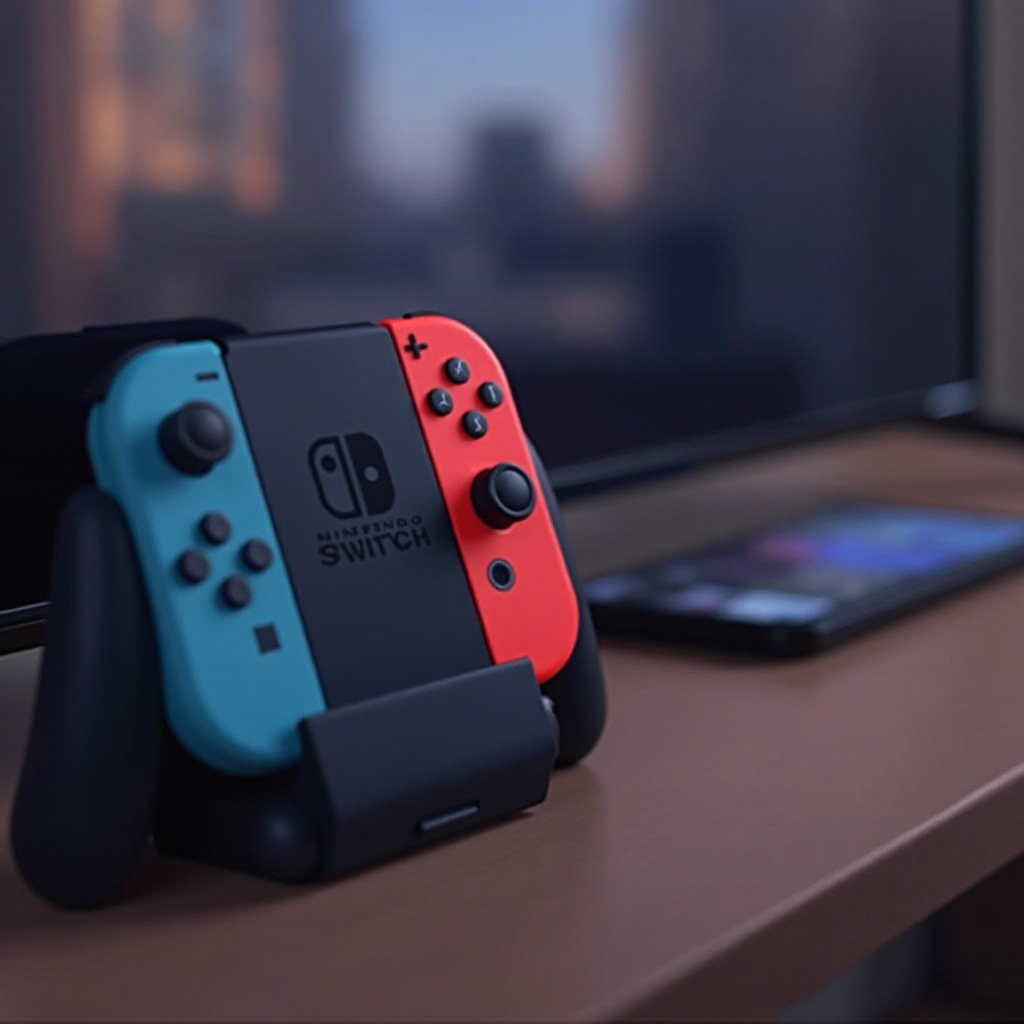
Understanding the Nintendo Switch dock is essential before diving into troubleshooting. The dock serves multiple functions: it connects the console to other devices, charges it, and facilitates playing on larger screens via an HDMI connection. Any issue affecting the dock’s operation can directly impact your gaming experience. By understanding the fundamental workings of the dock, you are better equipped to pinpoint and solve connectivity issues, as we move into identifying specific problems.
Common Reasons Why Your Nintendo Switch Dock Might Not Connect to TV
When the dock doesn’t connect to the TV, there are several common culprits.
-
Loose or Damaged Cables: First, inspect all connections to ensure they are secure. Cables, particularly HDMI, are prone to wear and tear, causing connectivity issues if damaged.
-
Incorrect TV Input Source: Often, the issue is as simple as the TV being set to the wrong HDMI input. Double-check that the selected input matches the HDMI port used.
-
Firmware or Software Issues: Compatibility can be disrupted by outdated software. Keeping your software updated is crucial to maintaining functionality.
Recognizing these typical issues is the first step, paving the way for a more targeted troubleshooting approach, as outlined in the following steps.
Step-by-Step Troubleshooting Guide
Resolving the Nintendo Switch dock connectivity issue is usually straightforward if you follow these systematic steps:
-
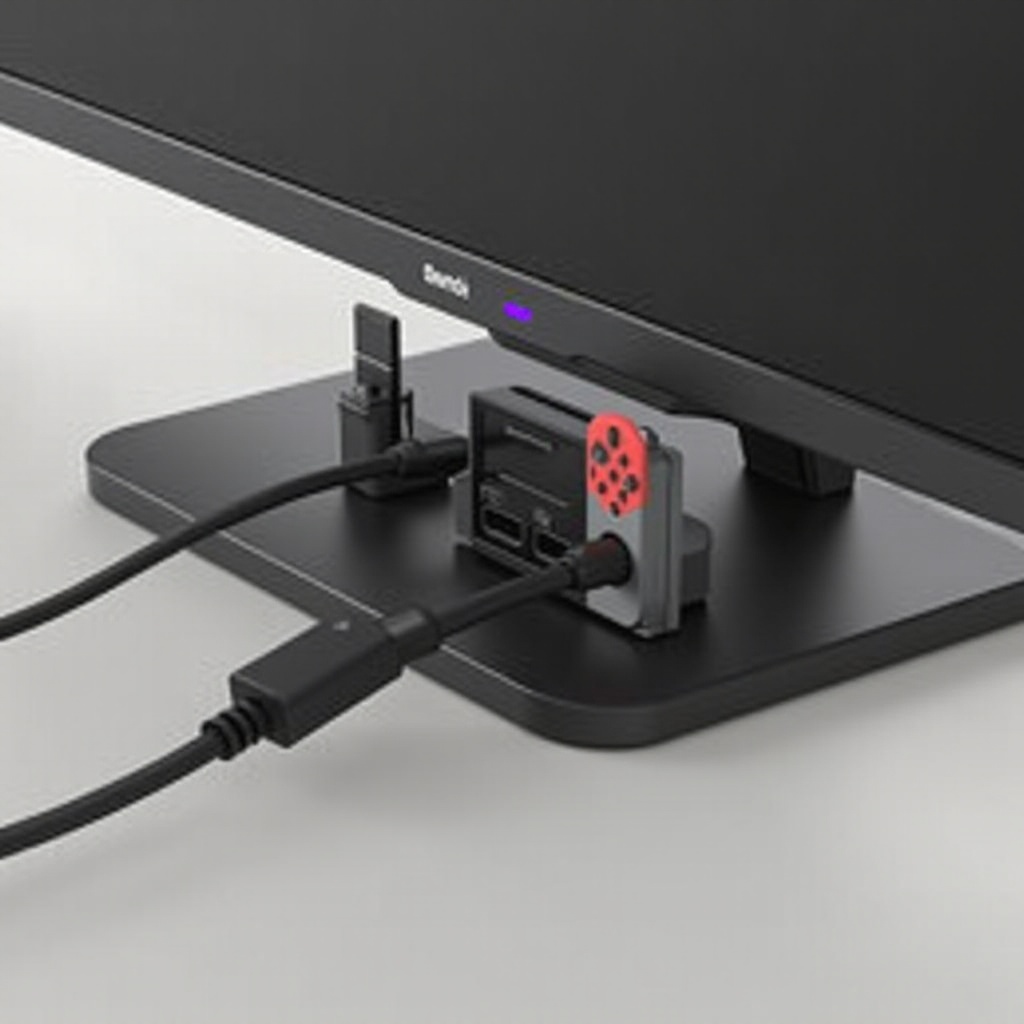
Verify Cable Connections: Ensure all cables are connected securely to both the dock and the TV. Replace any that show signs of damage.
-
Restart Your Console and TV: Power off your devices completely by unplugging them. After waiting a few minutes, restart them to resolve temporary glitches.
-
Try a Different HDMI Cable or Port: Sometimes, the cable or port itself is faulty. Use a different HDMI cable or switch the HDMI port on your TV to assess the connection.
While these steps often restore connectivity, persistent issues may require more advanced solutions, which we will explore next. This transition from basic to advanced troubleshooting ensures comprehensive coverage.
Advanced Solutions for Persistent Issues
If basic troubleshooting doesn’t resolve the issue, advanced techniques might be necessary:
-
Update Your Nintendo Switch Firmware: Ensure your firmware is up to date, as outdated versions can cause communication problems. Access System Settings and initiate a System Update via the internet.
-
Check for Physical Damage to the Dock: Examine the dock carefully for signs of physical damage, especially around ports and seams, which could impede connectivity.
-
Consider Third-Party Dock Alternatives: If issues persist, explore the use of reliable third-party docks. These alternatives may offer better compatibility for unique setups.
After attempting these advanced solutions, most users find resolution. Remaining issues warrant contacting professional support, as outlined in the next section.
When to Contact Nintendo Support
If your dock still won’t connect despite trying all previous methods, professional support from Nintendo might be necessary. Confirm you have exhausted all troubleshooting options. Professional assistance can often prevent further complications and can be crucial in maintaining your console’s integrity.
Conclusion
Facing a Nintendo Switch dock that won’t connect to your TV can be daunting, but it often doesn’t pose a permanent problem. By following a structured approach to problem-solving, most connectivity issues become manageable. Implementing these solutions ensures you’re well-prepared to enjoy your gaming time on the big screen without interruption.
Frequently Asked Questions
What should I do if my Nintendo Switch dock keeps disconnecting?
If your dock continually disconnects, confirm cable integrity, update the firmware, and consider cable replacement. Persistent issues may require professional evaluation or dock replacement.
Can a third-party dock damage my Nintendo Switch?
While third-party docks can offer solutions, they also carry risks such as compatibility issues. Opt for well-reviewed and reputable products to minimize risk.
How can I update my Nintendo Switch firmware?
To update your firmware, go to System Settings from the Home menu, select System, and then System Update. Ensure a stable internet connection for the update process.