
Introduction
Running a CD on a MacBook Pro may seem challenging if you have a newer model without a built-in CD/DVD drive. Whether you’re accessing music, videos, or essential data, using CDs with your MacBook Pro is still possible. This guide will lead you through the necessary steps, ensuring a smooth experience with your CDs.
Why MacBook Pro No Longer Includes a CD/DVD Drive
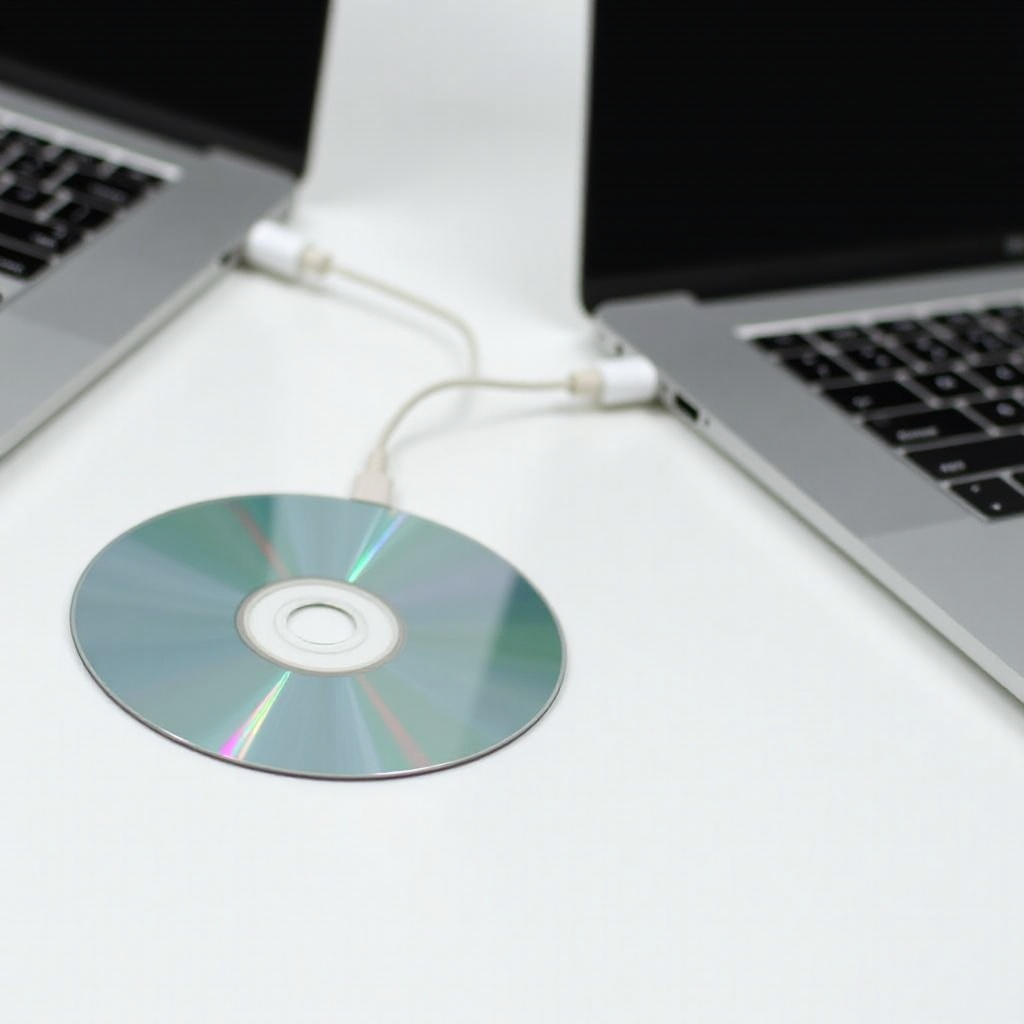
Apple has opted for more portable and sleek designs, leading to the exclusion of built-in CD/DVD drives in MacBook Pros. As consumers transition towards digital media, fewer laptops include optical drives. However, those needing to run CDs have excellent alternatives to make the process effortless.
Choosing the Right External CD/DVD Drive for Your MacBook Pro
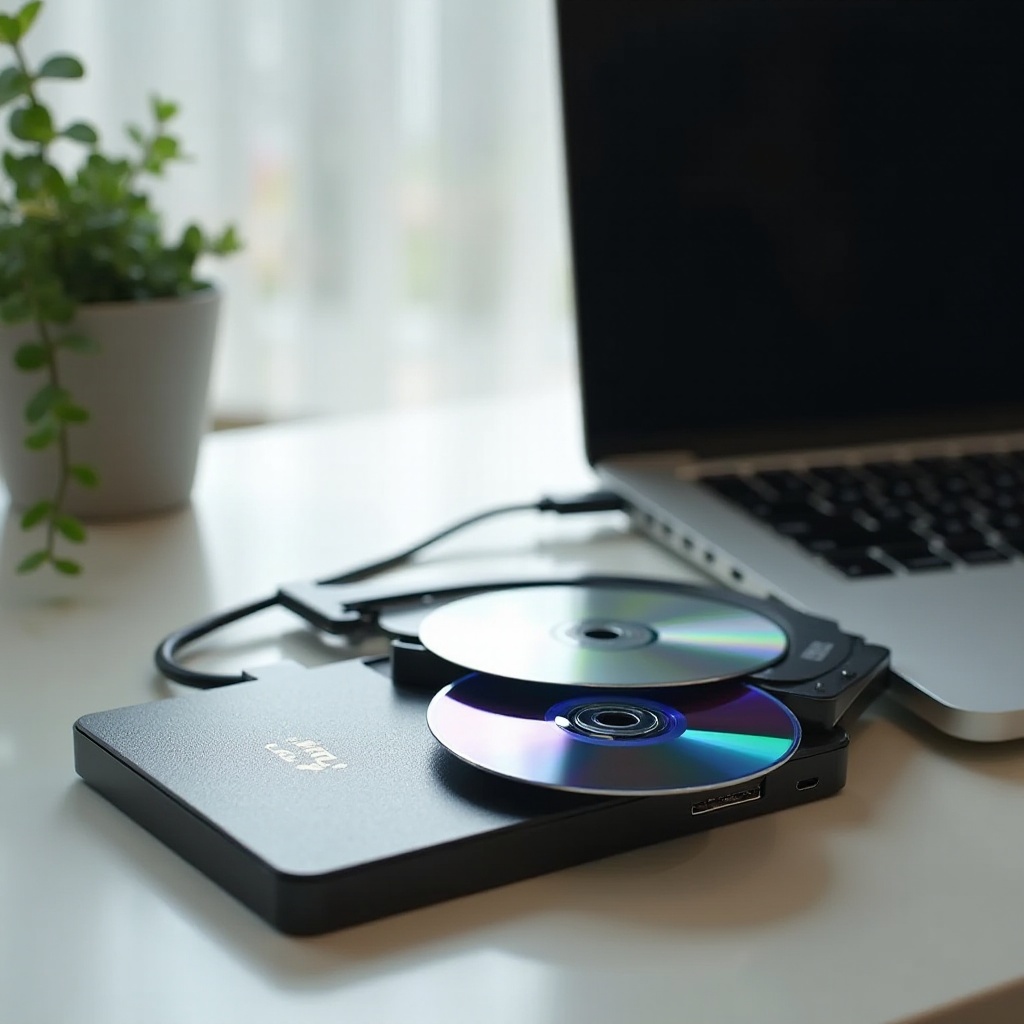
To use CDs with your MacBook Pro, selecting an appropriate external CD/DVD drive is crucial. Here are key factors to consider when selecting an external drive:
- Compatibility: Ensure the drive is compatible with macOS, especially newer versions.
- Speed: Opt for drives with USB 3.0 for faster data transfer.
- Portability: Choose a lightweight and compact model for ease of use.
In 2024, some recommended external drives include the LG GP65NB60, noted for its sleek design, and the Apple USB SuperDrive, guaranteeing compatibility and ease of use.
Setting Up Your External CD/DVD Drive
Once you’ve selected the right external drive, setting it up is straightforward:
- Connect the Drive: Attach your external drive to your MacBook Pro using a USB cable.
- Install Software: Most drives are plug-and-play, but if required, follow the software installation guide provided by the manufacturer.
- Check for Updates: Ensure your macOS is updated to fully support the external drive.
With your external drive set up, you’re ready to access your CDs effectively.
How to Access and Use CDs on MacBook Pro
To access and utilize CDs once the external drive is functional, follow these steps:
- Insert the CD: Place the CD into the external drive and wait for it to appear on the desktop.
- Open the CD: Double-click on the CD icon to open it in Finder.
- Access Content: Explore media files or documents stored on the CD.
- Transfer Data: Drag and drop files from the CD to your computer for easy access and storage.
This process ensures that you can efficiently access and manage the data on your CDs.
Troubleshooting Common Issues
Encountering problems when using an external drive can be frustrating, but they are generally easy to resolve:
- Connection Problems: Double-check that cables are secure and try another USB port if necessary.
- Unresponsive CDs: Clean any dust or smudges from the CD, as they may hinder readability.
Following these troubleshooting tips should help you overcome any technical difficulties you encounter.
Digital Solutions: Moving Beyond Physical CDs
Although using CDs is possible, transitioning to digital solutions offers numerous advantages:
- Cloud Storage: Services like iCloud or Dropbox allow safe storage and convenient access from any device.
- Digital Conversion: Converting audio CDs to digital formats like MP3s via iTunes or dedicated software simplifies storage and accessibility.
By opting for digital solutions, you can enhance accessibility and save space, making it a prudent choice for future data management.
Conclusion
Running a CD on a MacBook Pro is straightforward with a suitable external drive and the right knowledge. This guide provides clear steps for integrating CDs with your current technology environment. Whether using an external drive or exploring digital alternatives, you can effectively manage and access your CD content.
Frequently Asked Questions
Can I use a CD/DVD player with any MacBook Pro model?
Yes, you can use an external CD/DVD player with any MacBook Pro as long as it has compatible ports.
What types of files can I access with an external CD drive?
You can access music, video, and data files stored on CDs and DVDs using an external drive.
Are there any apps or software I need to play CDs on a MacBook Pro?
Most external drives do not require additional software, but media players like VLC can enhance compatibility and playback options.