
Introduction
When your iPhone’s power button isn’t working, it can be frustrating. This essential button is crucial for turning your device on or off, locking the screen, and performing resets. Without it, your iPhone seems incomplete. But don’t worry, there are practical solutions to restore its functionality. In this guide, we’ll explore the causes, offer immediate solutions, delve into advanced troubleshooting, and discuss preventive measures to keep your iPhone’s power button responsive.

Understanding the Causes of a Stuck Power Button
Before diving into solutions, it’s vital to comprehend the potential reasons for a stuck power button. Generally, the three main culprits include:
- Mechanical Blockages: Dust, lint, or dirt particles can accumulate around the button, impeding its operation.
- Software Malfunctions: At times, software bugs might be causing an unresponsive button.
- Physical Wear and Tear: Over time with frequent use, the button may deteriorate or become less effective.
Recognizing these causes can help you decide the best course of action to restore your power button. Understanding whether it’s a hardware or software issue is essential in choosing the right solution.
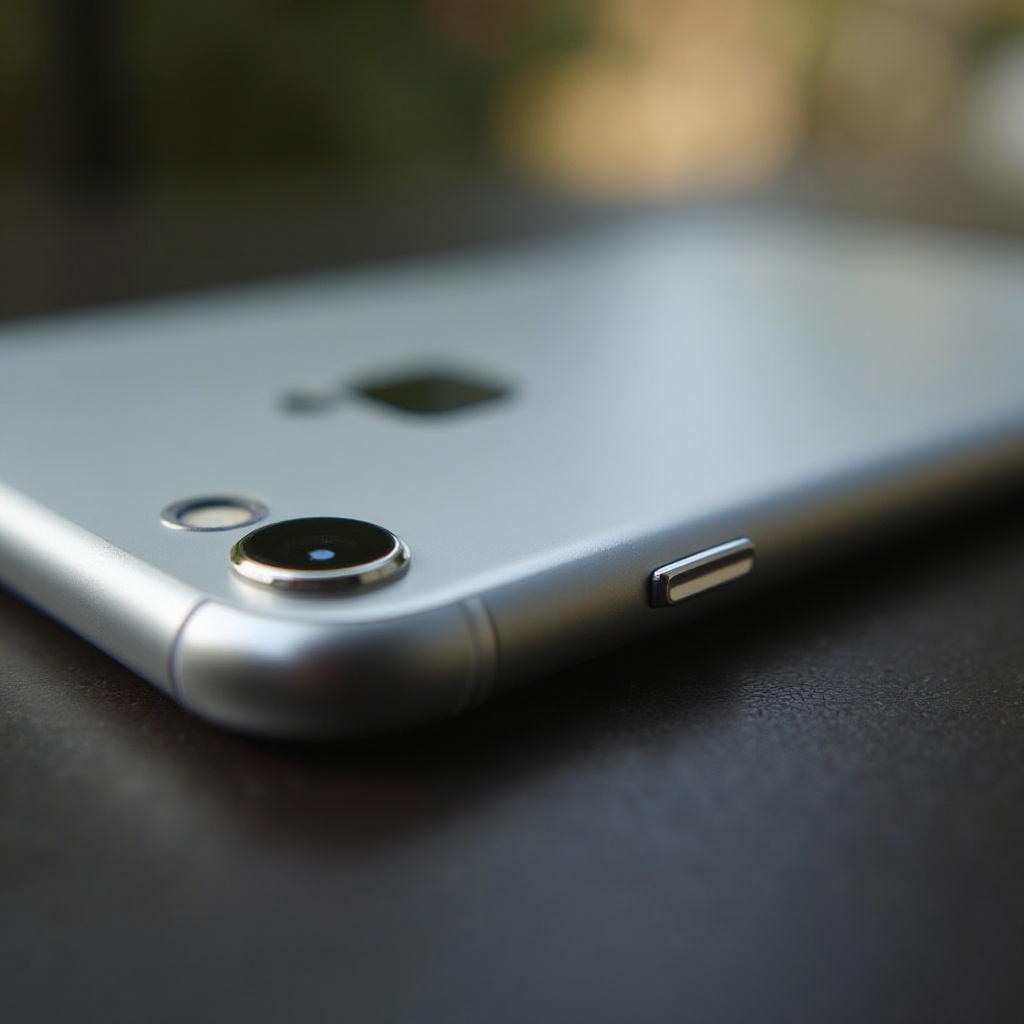
Immediate Solutions for an Unresponsive Power Button
Once you’ve identified possible causes, start with basic solutions that might immediately resolve the issue.
- Using AssistiveTouch: Enable AssistiveTouch in Settings > Accessibility > Touch. This on-screen tool assists in locking the screen or turning off your phone without using the power button.
- Cleaning the Button: Use a soft brush or a can of compressed air to gently remove any debris around the button. Take care not to push dirt further inside the device.
These initial steps are simple yet effective in many cases and get your iPhone functioning proficiently without immediate professional help. After applying these solutions, check if they’re sufficient for the long term.
Advanced Troubleshooting Techniques
If the basic solutions don’t solve the issue, digging into more detailed troubleshooting might be necessary. These advanced methods will address underlying issues, particularly software-related ones.
-
Performing a Force Restart: For most iPhones, a force restart can fix minor software glitches. Press and quickly release the Volume Up button, followed by the Volume Down button. Finally, press and hold the Side button until you observe the Apple logo.
-
Updating or Resetting iOS: Visit Settings > General > Software Update and install any updates. Updates often contain crucial bug fixes for hardware integration, including button functionality. If issues persist, consider resetting settings at Settings > General > Reset > Reset All Settings. This keeps personal data safe while returning system settings to defaults.
These approaches can effectively tackle infrequent software issues, refreshing the interactions between hardware and software for a smoother performance.
Seeking Professional Repair Assistance
Should all your troubleshooting efforts fail, professional repair may be needed. Apple Stores and authorized repair centers offer diagnosis and repair services, ensuring any hardware-related problems are expertly handled. Often, repairs may fall under an existing warranty or AppleCare+ plan.
Ensure that your data is backed up before heading for repair services to avoid any potential data loss during the repair process. Usually, professional intervention restores full functionality promptly, and your iPhone will be ready without further inconvenience.
Preventing Future Button Issues
Preventing future problems with your iPhone’s power button involves ongoing care and proactive use of accessories.
- Regular Maintenance: Clean your device regularly, especially areas around buttons, using a microfiber cloth and soft brush to avoid debris buildup.
- Protective Accessories: Use protective cases that cover and protect the button without restricting its functionality. Choose cases specifically designed for your iPhone model to ensure a snug fit and proper protection during drops and impacts.
Incorporating these simple habits into your routine helps preserve the health of your device, reducing the likelihood of encountering an unresponsive power button in the future.

Conclusion
While a stuck power button can initially seem daunting, this guide illustrates numerous effective solutions suited for immediate and long-term resolution. By starting with simple fixes and gradually exploring more advanced options, you can efficiently diagnose and solve the issue. Professional service remains a viable option for persistent problems, and preventative care can minimize the chances of recurrence, keeping your iPhone performing reliably. By following these insights, you maintain peace of mind and enjoy uninterrupted device functionality.
Frequently Asked Questions
How can I turn off my iPhone without the power button?
You can use AssistiveTouch to lock or turn off your iPhone by navigating the AssistiveTouch menu to ‘Device’ and selecting ‘Lock Screen’.
Is it possible to fix the power button at home?
While basic cleaning and setting adjustments can help, physical repairs should be left to professionals to prevent further damage.
How much does it cost to repair an iPhone power button?
Repair costs typically range from $69 to $149, depending on warranty coverage and the specific repair needed.