
Introduction
Apple devices are designed for seamless integration, providing users with an unparalleled experience of connectivity and convenience. Among the many features available, transferring a call from your Apple Watch to your iPhone stands out as a practical tool. This capability offers not just ease but also the flexibility to manage calls efficiently, whether you’re moving between tasks or seeking a more comfortable way to converse.
Mastering call transfer adds a layer of sophistication to your device handling. In this guide, you’ll find clear instructions, troubleshooting tips, and advanced insights to fully leverage this feature.
Understanding Apple Ecosystem Compatibility
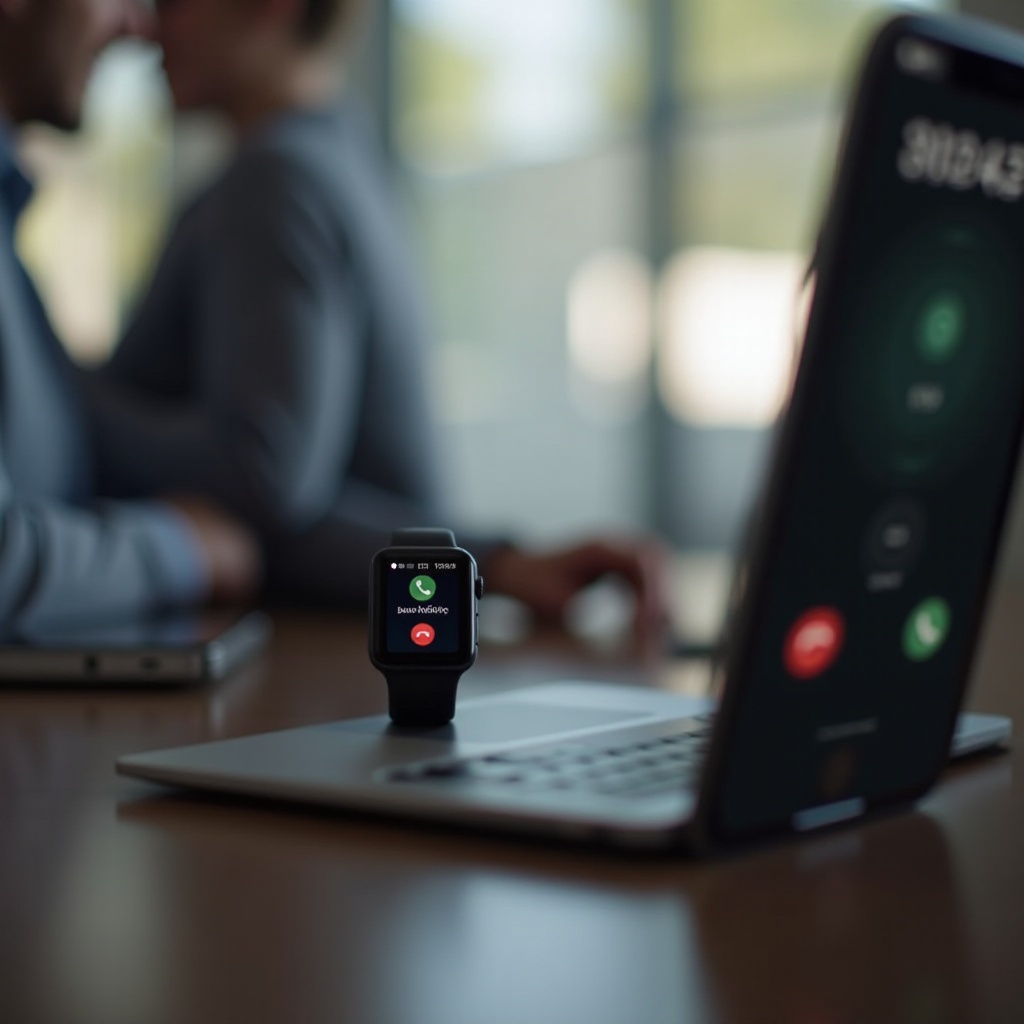
The synchronization between your Apple Watch and iPhone is a testament to the strength of Apple’s ecosystem. For call transfer functionality, ensuring that both your devices are up-to-date is key. An updated operating system not only guarantees compatibility but also unlocks the latest features and security enhancements, keeping your devices running smoothly.
Periodically check for updates by navigating to the Settings app on both devices. This habit will help avoid performance issues down the line and is a prerequisite for the next steps in the call transfer process.
Preparing Your Devices for Call Transfer
A successful call transfer requires preparation. Make sure that the following conditions are met:
-
Ensure Bluetooth and Wi-Fi Connections: Both devices need to be connected to the same Wi-Fi network and within Bluetooth range. This connection is crucial for facilitating the transfer.
-
Configure Handoff and Continuity Settings: On your iPhone, go to Settings, select ‘General’, then ‘AirPlay & Handoff’, and turn on Handoff. Similarly, on your Apple Watch, use the Watch app, navigate to General, and enable Handoff.
These steps are essential for preparing your devices, making them ready for the call transfer function, and setting the stage for the actual procedure.
Step-by-Step Process to Transfer Calls
Here is how you can transfer a call from your Apple Watch to your iPhone effectively:
- Receiving Calls on Apple Watch:
-
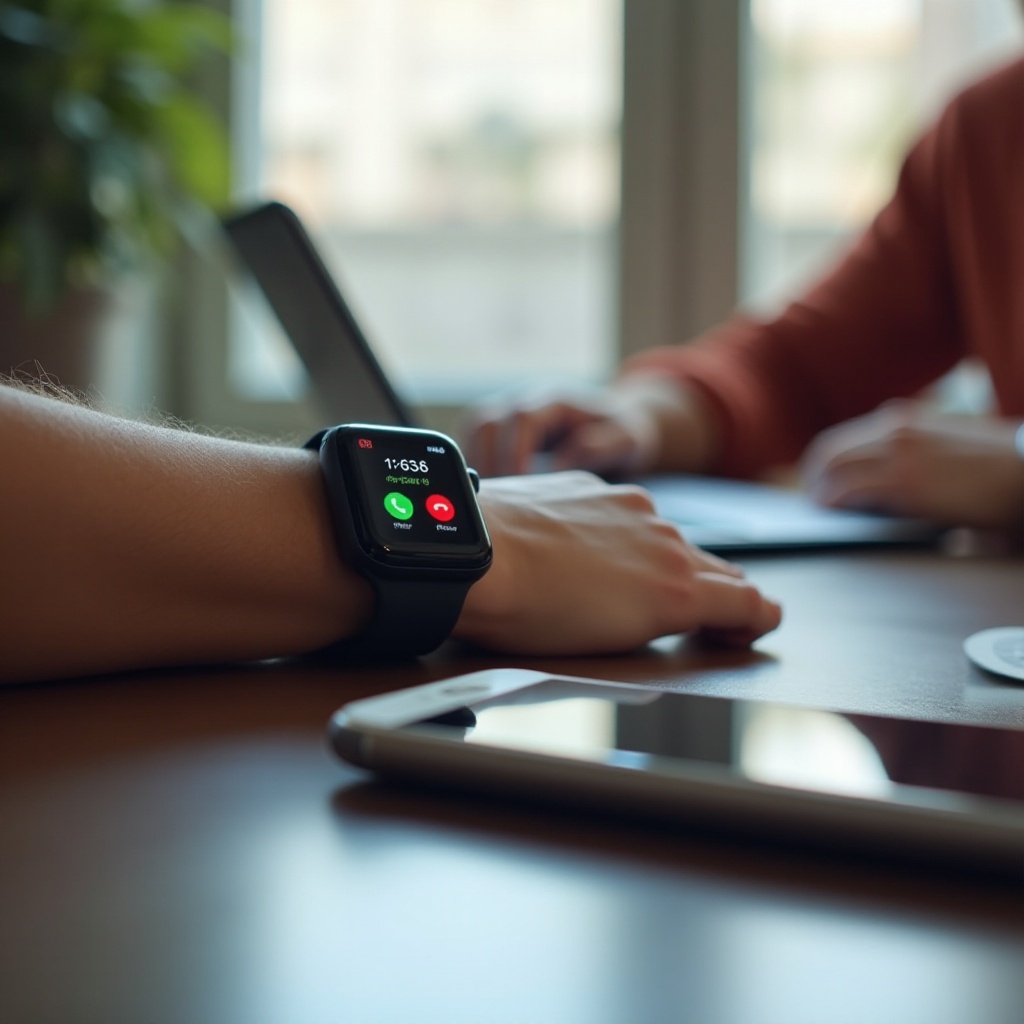
When a call arrives, answer it by tapping the green phone icon on your Apple Watch. This allows for initial conversation directly from your wrist.
-
Transferring Calls to iPhone Using Handoff:
-
During an active call on your watch, pick up your iPhone. You’ll notice a call icon on the bottom-left corner of the lock screen. Swipe up on this icon to transfer the call to your iPhone.
-
Completing the Transfer on iPhone:
- Once you swipe up, the call transfers seamlessly to your iPhone, allowing you to continue speaking through your phone’s audio system.
This feature is particularly useful when shifting from a hands-free environment to a more private one. Understanding these steps ensures you can move calls effortlessly between devices.
Troubleshooting Common Call Transfer Issues
Sometimes, technology doesn’t work as expected, but many common call transfer issues have straightforward solutions:
-
Connectivity Problems: Double-check your Bluetooth and Wi-Fi connections. Toggle the connections off and back on if necessary to reset any temporary issues.
-
Handoff and Continuity Settings Issues: Verify that the Handoff feature is enabled on both devices. Disabling and then re-enabling Handoff can often resolve persistent issues.
-
Device Compatibility Issues: Ensure your devices are running the latest software versions. If problems persist, a simple restart of both devices can resolve many bugs.
Addressing these potential challenges head-on allows for a smooth and uninterrupted experience between your devices.
Advanced Tips for Efficient Call Management
Once familiar with the basic transfer process, consider these advanced techniques to optimize your call management:
-
Battery Optimization: Prolong your device battery life by closing unused apps and limiting background processes. Keep screen brightness to a minimum when possible.
-
Exploring Additional Features: Utilize other Apple Watch features like replying to messages or accessing notifications on the go, maximizing the utility of your watch beyond call transfers.
These tips not only enhance your user experience but also ensure that your devices remain reliable tools in your daily activities.

Conclusion
Managing calls efficiently with the ability to transfer between your Apple Watch and iPhone exemplifies the ease of use that Apple devices provide. By following these detailed steps and incorporating our tips, you can enhance your experience, maintaining seamless communication and convenience across your Apple devices. Stay up-to-date with Apple’s updates and explore all the features your devices have to offer for a truly integrated experience.
Frequently Asked Questions
Can I transfer calls from Apple Watch to an older iPhone model?
Yes, as long as your iPhone supports Handoff and Continuity. Generally, this is available from iPhone 5 onwards.
What should I do if call transfer isn’t working between my Apple Watch and iPhone?
Ensure your Bluetooth and Wi-Fi are enabled, check Handoff settings, and confirm that software updates are current on both devices.
Is there a difference in call transfer features between Apple Watch models?
While most recent models support call transfer, differences might exist due to hardware and software variations. Update your devices for optimal functionality.