
Introduction
Transferring your Nintendo Switch data to another account is essential to preserve your game progress and personal settings. Whether you’re changing accounts, sharing with family, or upgrading to a new device, knowing how to efficiently control your data is crucial. This guide will provide you with the steps needed to perform this action effectively and securely.
Understanding Nintendo Switch Data Transfers
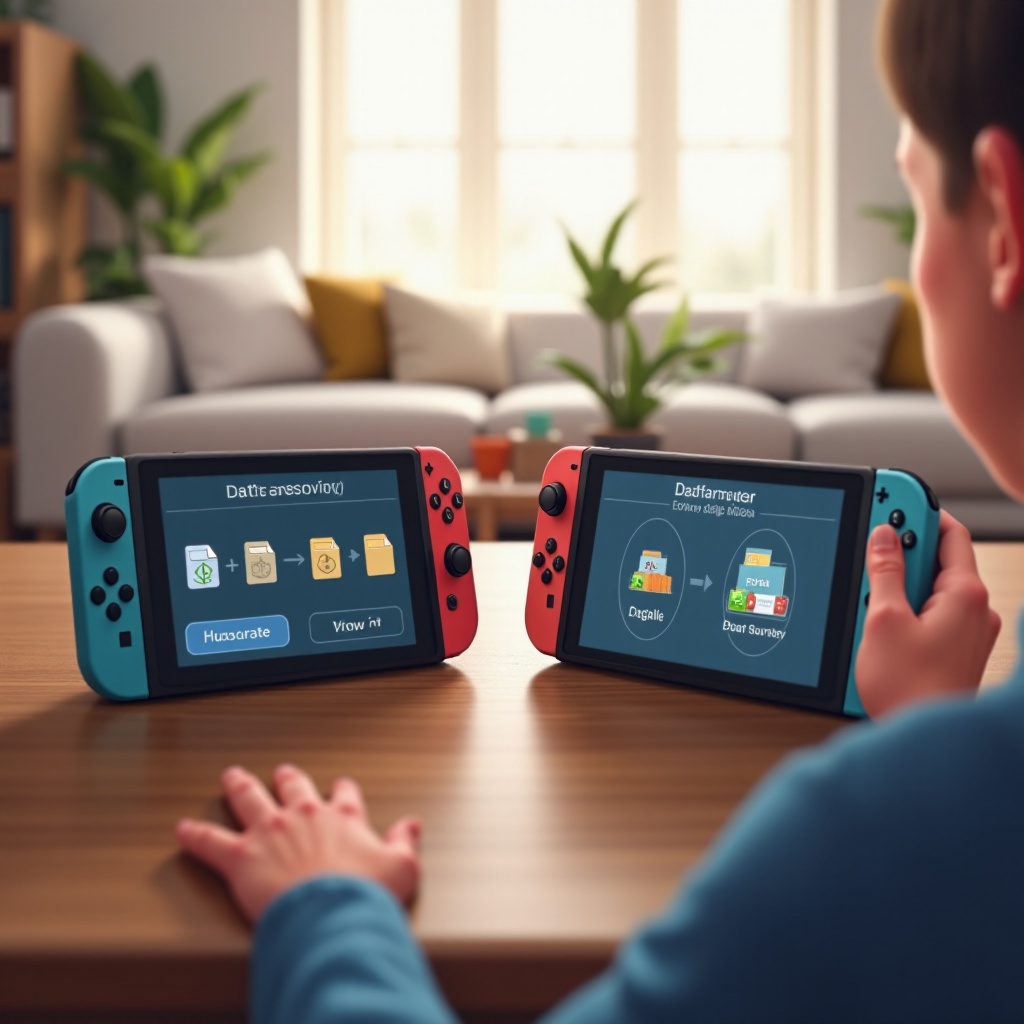
Before starting the transfer process, understand what types of data are stored on your Nintendo Switch. Each user account may hold save data, personalized settings, and purchase history. Identifying these data types helps in determining your transfer needs. Transferring data ensures continuity in your gaming experience, whether for switching accounts or consoles.
Preparing for the Data Transfer Process
Preparation is key for a seamless data transfer on your Nintendo Switch. Follow these steps to ensure you’re ready.
Checking System Updates and Requirements
- Ensure your console is updated: Navigate to ‘System Settings > System > System Update’ and check if your Nintendo Switch is up to date with the latest software version. Updates are essential for minimizing transfer issues.
- Verify internet connection: A stable internet connection is necessary for successful data transfer. Check your network settings and use the ‘System Settings’ menu to perform a connection test.
Backing Up Important Data
- Utilize cloud saves: If you’re a Nintendo Switch Online member, back up your save data to the cloud by going to ‘System Settings > Data Management > Save Data Cloud Backup.’ This action offers a safety net for your data.
- Manual backup: For games without cloud save capabilities, consider using a microSD card to manually back up your save data.
With these preparations in place, you’re now equipped to begin the data transfer process. Ensuring system readiness minimizes potential challenges.
Step-by-Step Guide to Transferring Data
Here is a comprehensive guide for transferring your Nintendo Switch data to another account smoothly.
Accessing the Transfer Menu on Nintendo Switch
- Log in with your primary account: Start the process by signing into the account from which you want to transfer data.
- Open System Settings: Access the settings from your home screen and choose ‘Users.
Selecting Files for Transfer
- Choose Transfer Your User: Within the Users menu, select ‘Transfer Your User and Save Data.
- Confirm selection: Follow the prompts to choose the data you wish to transfer, including save data and user-specific settings.
Completing the Transfer Process
- Follow on-screen instructions: The system will guide you through pairing the original and receiving accounts. Read each step carefully.
- Verify the transfer: After completion, check the destination account to confirm the successful transfer of save data and settings.
You have now completed the data transfer, ensuring your gameplay remains uninterrupted.
Common Issues and Troubleshooting Tips
While the process is generally straightforward, issues may arise. Here are tips to solve common problems:
Resolving Error Messages
- Check connections: In the event of connectivity errors, ensure both consoles are connected to stable WiFi networks.
- Storage issues: Verify there is adequate free space on the destination console. Managing storage with a microSD card can solve space-related problems.
Ensuring Data Integrity
Compare transferred data with the original to confirm accuracy. If discrepancies are found, consider repeating the process to ensure data integrity.
Understanding these troubleshooting tips keeps your game data intact across accounts.
Best Practices for Future Transfers
Implement precautionary measures for a streamlined data transfer experience.
Regular Use of Cloud Saves
Engage cloud saving features for automatic backups, especially if you frequently switch between devices or accounts.
Keeping Accounts Synced
Regularly log into accounts to sync game data and updates, preventing data loss and ensuring your console captures the latest game progress.
By adopting these best practices, you enhance data security and streamline future transfers.
Conclusion
Completing a successful Nintendo Switch data transfer to another account entails careful preparation, following a precise guide, and handling common issues. By understanding and performing these steps, you ensure the preservation of your game progress and settings. Whether switching consoles or sharing an account, the transfer process doesn’t need to be challenging.
Frequently Asked Questions
Can I transfer data between accounts on the same Switch?
Yes, you can transfer save data between accounts on the same Switch using the system’s transfer feature in System Settings.
What types of data cannot be transferred?
Data linked to Nintendo eShop purchases remains with the original account and cannot be transferred. Ensure you have access to the account for digital purchases.
How can I ensure my data is secure during transfer?
Use cloud saves for secure backups and ensure both consoles have stable internet connections with the latest system updates to support data integrity.