
Introduction
Your iPhone’s ability to add location data to your photos is a feature that many appreciate for organizing and reminiscing. However, privacy concerns arise when this data is shared unknowingly. Knowing how to disable this feature empowers you to protect your personal information while enjoying the flexibility of digital photography.
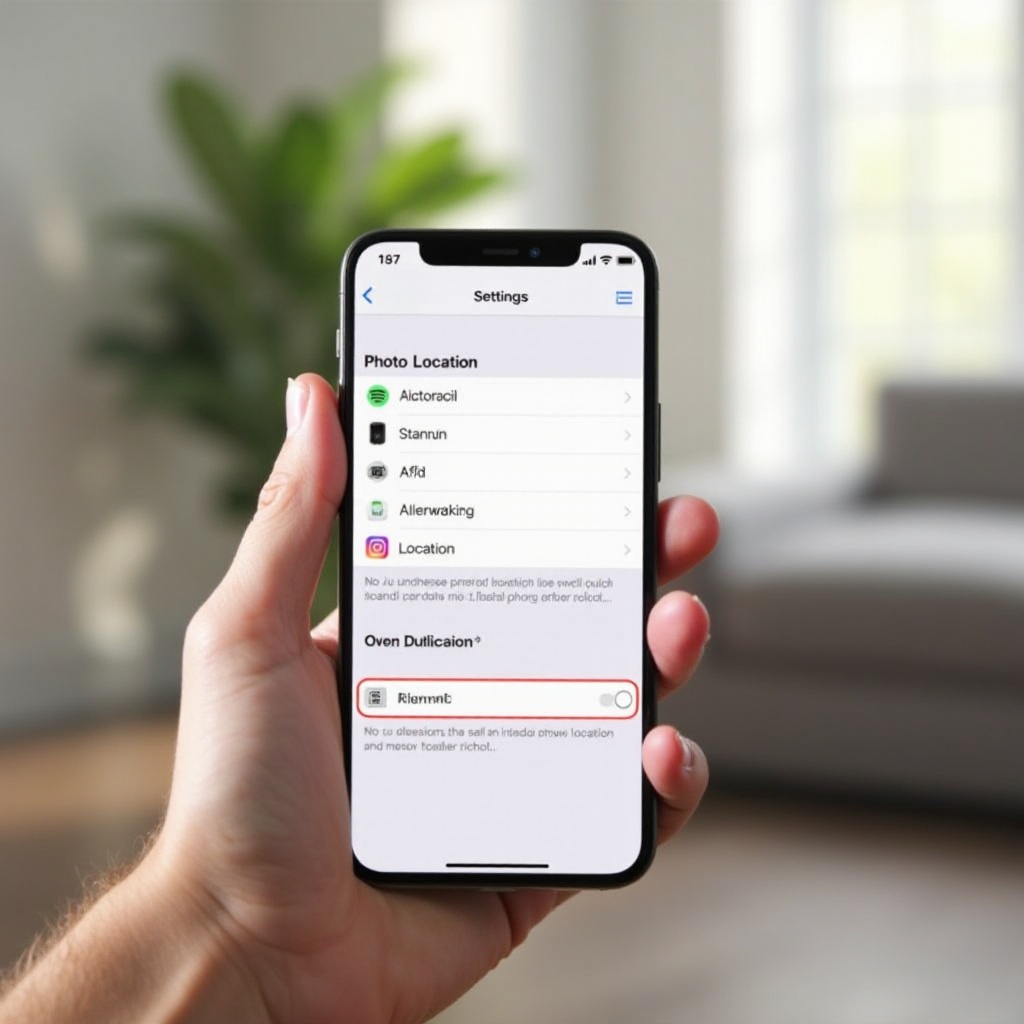
Understanding iPhone Location Services
iPhone’s Location Services aim to provide enhanced user experiences by offering location-based information to apps. When active, they allow apps, including the camera, to record where photos are taken. This enables sorting images by location or revisiting particular places. Despite these advantages, many users prefer not to have such detailed location data accessible.
Considering the integrated nature of Location Services, it’s vital to understand their operation within your device to make informed choices about your privacy settings. Adequately configuring these services is the first step in maintaining privacy.
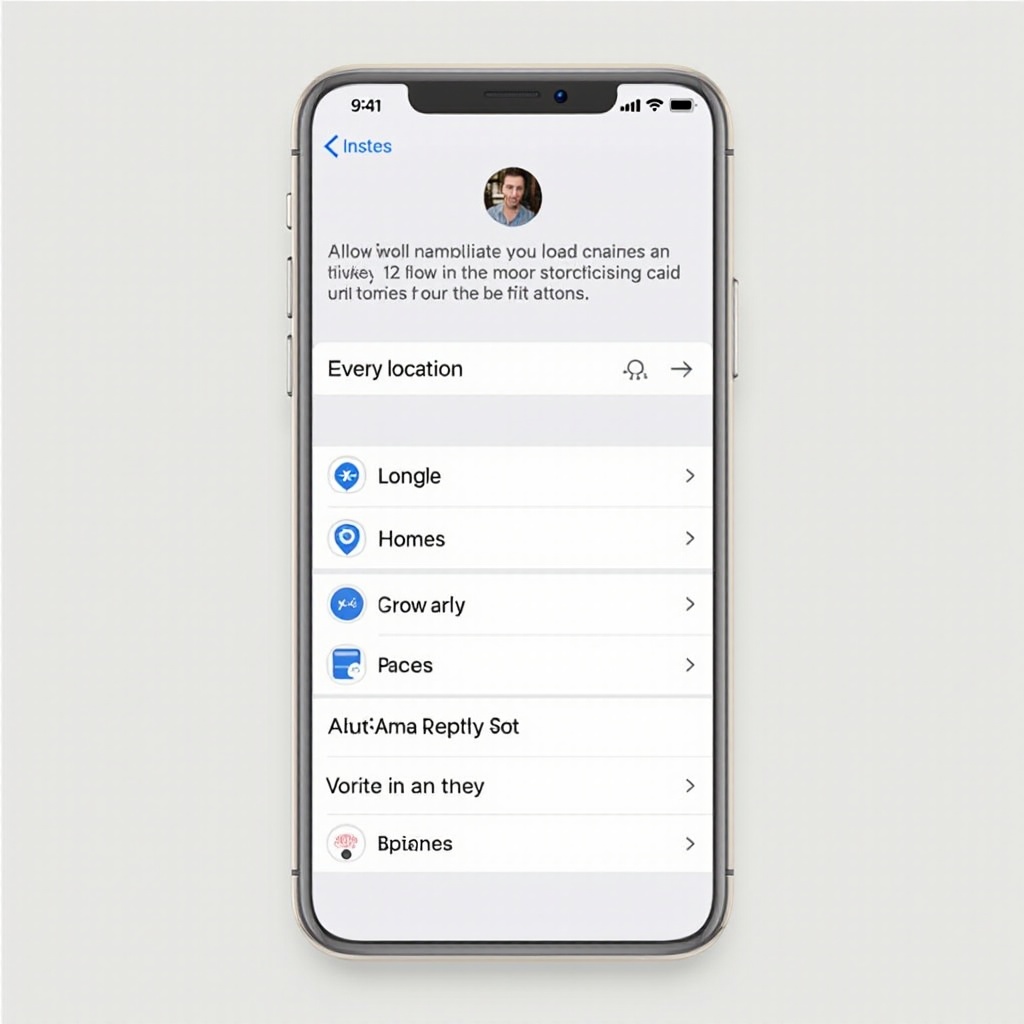
How to Turn Off Photo Location on iPhone
Disabling photo location on your iPhone is a straightforward process that enhances your privacy while preserving app functionality.
- Open the ‘Settings’ app on your iPhone.
- Scroll down and select ‘Privacy & Security.
- Tap on ‘Location Services.
- Locate the ‘Camera’ in the list and tap on it.
- Choose ‘Never’ to prevent the camera from accessing your location.
By following these steps, you’ve stopped your camera from adding location to new images. It’s important to verify the changes by checking your photos for location data to ensure that the settings are correctly updated.
Managing Your Photo Privacy
Once you’ve disabled location tagging for new photos, managing existing photos becomes essential. Over time, accumulated metadata might reveal more than intended.
Begin by going through your photo library. Several apps, like Exif Metadata, can be helpful to view and edit this information. Manually removing the metadata ensures only the information you wish to share remains.
As Apple continues to launch iOS updates, new privacy options become available, fortifying your privacy. Keeping your device updated ensures you have access to these enhancements.
Additional Privacy Tips for iPhone Users
Privacy isn’t limited to photo location data; managing app permissions holistically is vital.
Regularly check which apps have location access by navigating to ‘Settings’ > ‘Privacy & Security’ > ‘Location Services.’ Limit unnecessary location sharing by revoking permissions for apps that do not require it for primary functions.
Consider setting location access to ‘While Using the App’ instead of constant tracking. This approach diminishes background data sharing, reducing potential data exposure.
Alternatives to Turning Off Location Services
Disabling location services isn’t always feasible, as some situations might demand their use. Here are alternatives that help maintain privacy without complete shutdown.
Temporarily disable location for individual images by using the ‘Info’ (‘i’) option in the Photos app to adjust location data. Additionally, ensure that location data is excluded during image sharing through social media or messaging platforms.
These alternatives enable the beneficial use of geotagging on your terms, ensuring privacy doesn’t hinder functionality.
Conclusion
Shielding your privacy is attainable through an understanding of and attentiveness to location settings. Taking the steps outlined here ensures your data remains within your control. Regularly assessing these settings and staying abreast of updates is crucial as technology continues to evolve.
Frequently Asked Questions
How can I confirm that location services are off for my photos?
Open a new photo in the Photos app and swipe up. If no location appears at the top, your location services are successfully disabled for photos.
Can I remove location information from photos already taken?
Yes, you can use the ‘Info’ option in the Photos app or third-party apps to edit and remove the location data from your existing photos.
Will turning off location affect other apps on my iPhone?
Disabling location services for the camera affects only the camera. Each app has individual settings for location access, so check each one to ensure privacy preferences are met.